
bookmarklet
Google SMS QR Extractor
Finish Google's "scan this QR code with your phone" verification on your computer. It reads the QR code for you and shows the text message to send, so you can send it from any phone or VoIP number.
Drag this button up to your bookmarks bar. That's the whole install.
Don't see a bookmarks bar? Press Ctrl+Shift+B (on a Mac ⌘+Shift+B).
Don't click it here; it only works on the page it's made for. Drag it to your bookmarks bar instead.
Can't drag? , then add a new bookmark and paste it as the bookmark's address (URL).
Computer only. This one needs a desktop browser with a bookmarks bar.
When you need it
When you create a Google account (or Google wants to double-check one), it may show a page that says scan the QR code with your phone. Scanning it would make your phone send a text message to Google. If you don’t have a smartphone that can scan it, you’re stuck.
This bookmarklet reads that QR code on your computer and shows you the number and the message Google wants. You then send that text yourself, from any phone, a kosher phone or a VoIP number.
How to use it
- Go through Google’s sign-up or verification until you reach the page that says “Scan the QR code with your phone”.
- Click the Google SMS QR Extractor bookmark. It reads the QR code and opens Google’s verification page in a new tab.
- In that new tab, click the bookmark again. It presses Google’s “Send SMS” button for you and shows a panel with the phone number and the message.
- From any phone, send that exact message to that number as a regular text (SMS).
- Go back to Google and continue. Google checks for your text and moves on once it arrives.
If something doesn’t work
-
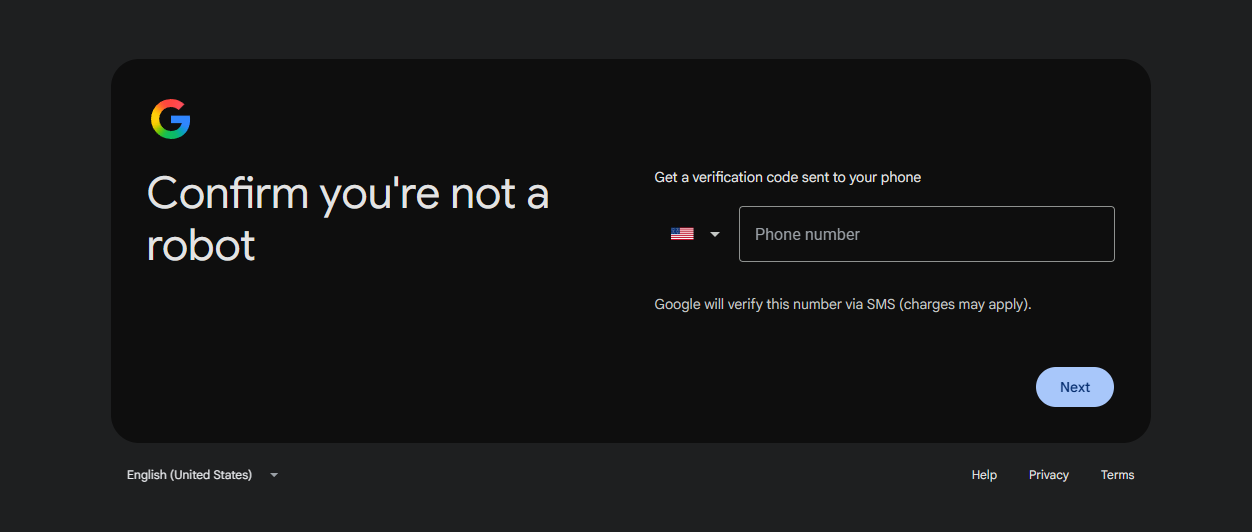
No QR code, Google asks for a phone number instead: Google sometimes shows a different screen, “Get a verification code sent to your phone”. You don’t need this bookmarklet for that one. Enter a number that can receive texts, and type in the code Google sends.
-
“This phone number has been used too many times”: that’s Google refusing the number you texted from. The bookmarklet can’t change that, so try sending the message from a different number.
-
Nothing happens when you click the bookmark: make sure you’re on the Google page itself (step 1 or step 3), not on this site. After installing, reload the Google page once.
-
Still stuck? Click “Did it work?” in the panel to tell me, or send me a message.
Privacy
Everything happens in your own browser. The QR code is decoded on your computer, and nothing about your account, the phone number, the message or the code ever leaves it.
Since version 1.2 the bookmarklet sends an anonymous count of how often it’s used, plus any feedback you choose to give. That helps me notice when Google changes something and it stops working.
Computer only
This needs a computer with a bookmarks bar (Chrome, Edge, Firefox or Brave). It doesn’t work on phones.
Not working, or have an idea for it? Tell me.
Links
Version history
- v1.2.1 · Oct 29, 2026Same as 1.2, now installed from the new knaperyaden.org (so I can tell the two apart).
- v1.2 · Oct 27, 2026New look, a "Did it work?" button, and anonymous usage counts so I can tell if Google changed something again.
- v1.1Works with Google's new QR-code verification. The QR code is now decoded right on your computer.
- v1.0First version, for Google's older "Send SMS" verification page.
Source code
View the source (258 KB)
Free to use, share and change (MIT license).